

- “Reset Password” because you have lost your password
- “Change Password” because you want to change from system generated password
How to Reset/Change your password
What you would like to do?
1. Steps to Reset your password if you have lost your password
1. Visit “Login” page https://shc-sg.com/member-login/
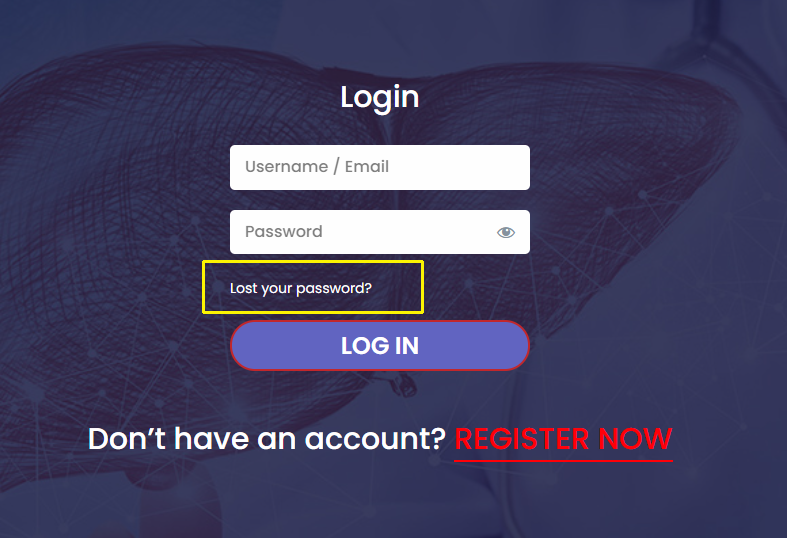
2. Click on the “Lost your password?” link https://shc-sg.com/lost-
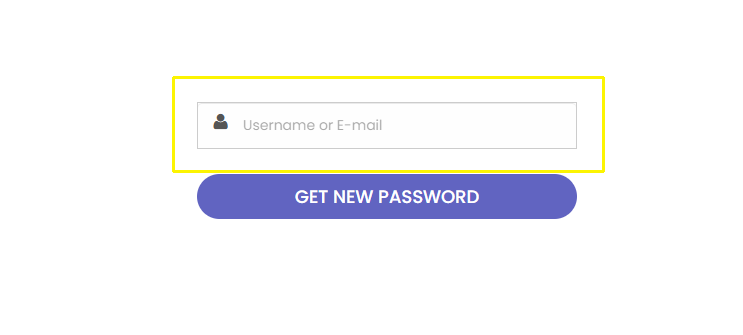
3. Enter your “Email” that you have used while registering first time and click on the button “Get New Password“.
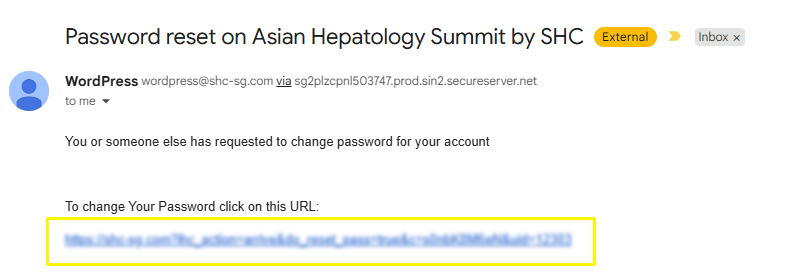
4. Check your Email “Inbox” or “Spam/Junk” folder. You will receive an email from us. Sometimes it may take 5 to 10 minutes to receive the email, depending on email server availability. The email will contain a unique link specific to your password reset request.
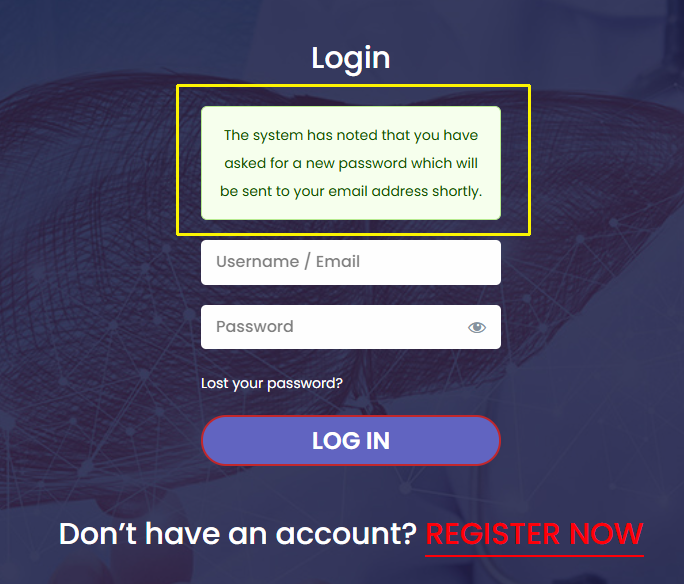
5. Click on the link in the email. You will be redirected to the SHC website login page. System will generate and send you a new password on your email.
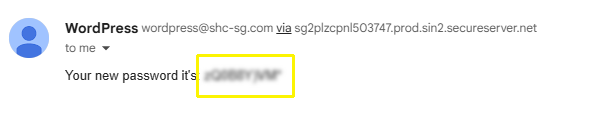
6. Please check your Email “Inbox” or “Spam/Junk” folder. This email will contain a new password. Sometimes it may take 5 to 10 minutes to receive the email, depending on email server availability.
2. Steps to Change Password
1. Visit the “Login” page https://shc-sg.com/member-login/
2. Login with your username and password
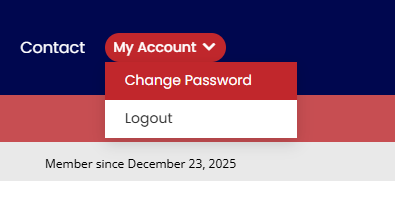
3. After login, Click on the “Change Password” button under “My Account” at top right of the page
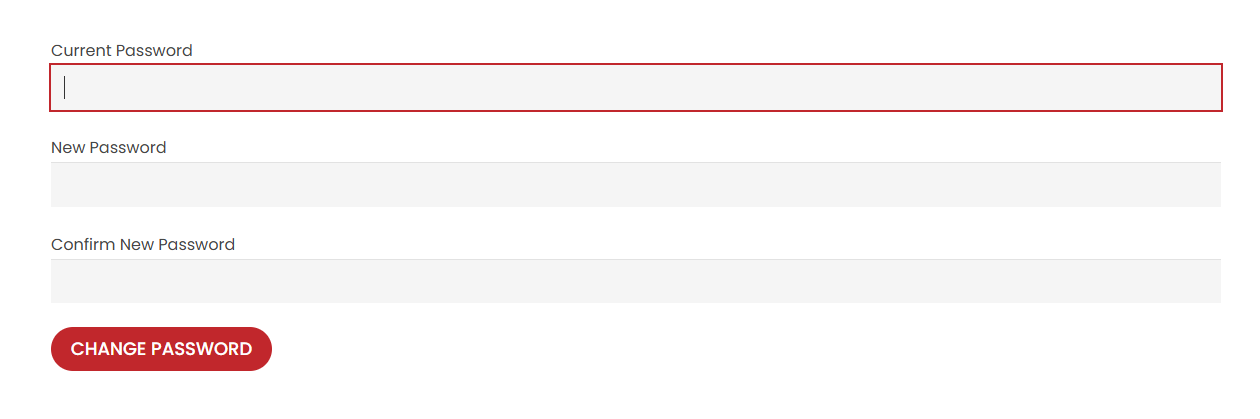
4. Enter your current password and the new password you want to set. Click on “Change Password“
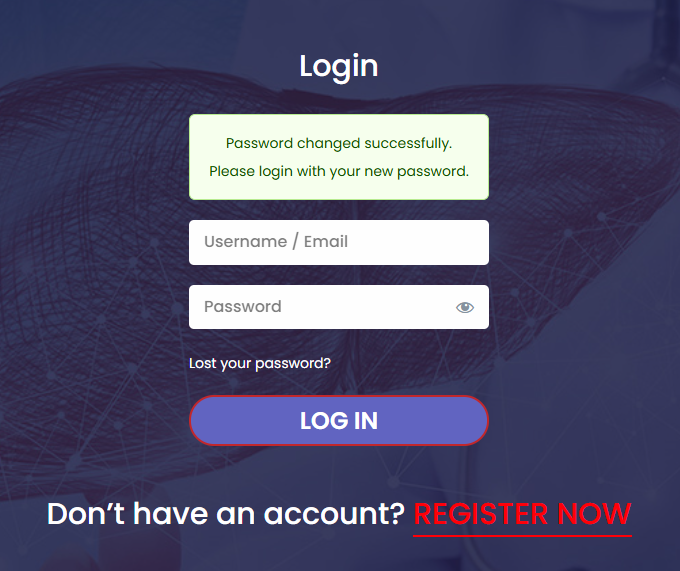
5. Your password is changed and you will be asked by the system to login with your new password.
Hope this helps you changing you password. In case of any dificulty, please reach out to us at ask-us@shc-sg.com and we will help you further.